Troubleshooting
Build and Link Errors
I'm having trouble using SFML
First, make sure that you have followed the installation instructions in the official tutorials.
Have you:
- Provided the path to the SFML headers to your compiler?
- Provided the path to the SFML libraries to your linker?
- Included the headers for the modules you're using? (
SFML/[capitalized name of module].hpp) - Linked with the modules you're using? (See What and how do I link to use SFML?)
- (Windows only) Copied the DLLs of the modules you're using, e.g.
sfml-graphics-3.dll, next to your executable? - (Linux only) Installed SFML, either through your package manager or with
cmake --install?
If you've checked all of those, and SFML still refuses to work, see I found a bug!.
I keep getting "undefined reference to " errors!
See What and how do I link to use SFML?
If that doesn't help, see How do I make my IDE output verbose build information?
If that also doesn't help, feel free to ask for assistance on the forum.
The prebuilt libraries don't work with my compiler
The prebuilt Windows packages on the download page only work with the compiler they were built with.
For Visual Studio, the package for Visual C++ 17 (2022) works with Visual Studio 2022 and newer.
For MinGW, it isn't enough that the GCC versions seemingly match, you have to use the exact MinGW build that's linked on the download page. Different MinGW builds use different exception models and runtimes, which leads to undefined references when linking, or to crashes and "procedure entry point could not be located" errors when starting your application.
If your compiler doesn't match, either install the matching compiler, or build SFML with your compiler, the easiest way being the CMake project template.
My application can't find the SFML DLLs
On Windows, if you link SFML dynamically, the DLLs have to be found when your application starts. If they aren't, you get an error like "The code execution cannot proceed because sfml-graphics-3.dll was not found".
Copy the DLLs of the modules you use next to your executable, e.g. sfml-graphics-3.dll, sfml-window-3.dll and sfml-system-3.dll, and the -d variants for debug builds (see the naming conventions).
With MinGW, the runtime DLLs of your compiler, e.g. libstdc++-6.dll, have to be found as well.
If the error says that a "procedure entry point" could not be located, a DLL with the same name, but from a different SFML version or compiler was found first, e.g. through your PATH.
Make sure the DLLs next to your executable match the libraries you linked against.
Alternatively, you can link SFML statically and won't need the SFML DLLs at all.
How do I make my IDE output verbose build information?
Often times, compiling/linking your project might fail for some reason. Even after re-checking all your project settings and comparing it to what is described in the tutorials you still don't know the cause. IDEs (Integrated Development Environments) are nothing but front-ends for the toolchain underneath of it. All that IDEs (such as Code::Blocks, Visual Studio, Eclipse etc.) do is automate and generally make it easier for you to work on your projects from within a single environment, hence their name. Without IDEs, you would have to resort to plain text editors to write your code and manually pass your source files to your compiler/linker on the command-line yourself.
One way an IDE makes your life simpler is by parsing the compiler/linker output and presenting it to you in a friendlier manner. Often, clicking on an error will take you to the offending line for example. What your IDE does "behind the scenes" when you click on the Build button or press your Build key is invoke a series of commands that you would also able to do yourself (but is simply tedious). It then relays the generated text output, including all warnings and errors back to you after the commands have been run. By default, most IDEs are set by default to not show the commands it runs behind the scenes to the user. However, it is exactly this information that is helpful when building fails. Thankfully, the IDEs let you specify whether you want to see these commands or not.
The commands are generated from your project configuration information that you set through the IDE user interface. You might think that you set everything right in your project settings, but the only way of knowing for sure is by inspecting the commands that are run. The command line will consist of a large number of flags and parameters. Refer to the compiler/linker documentation if you want to understand them. When asking for assistance in build-related matters on the forum, it is always recommended to provide the full build log (consisting of the commands and the raw output from the compiler/linker) to the other users. It is a very compact way of providing information about your project configuration without having to make several screenshots of your IDE user interface. Experienced users can very quickly spot from what you paste the mistake you made, if any. Don't be surprised if you are immediately asked for this information.
Code::Blocks - all versions, all operating systems
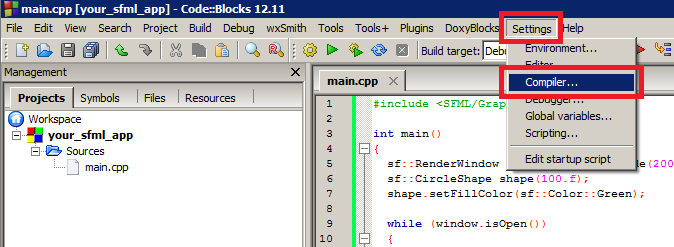
First, open up your compiler settings window.
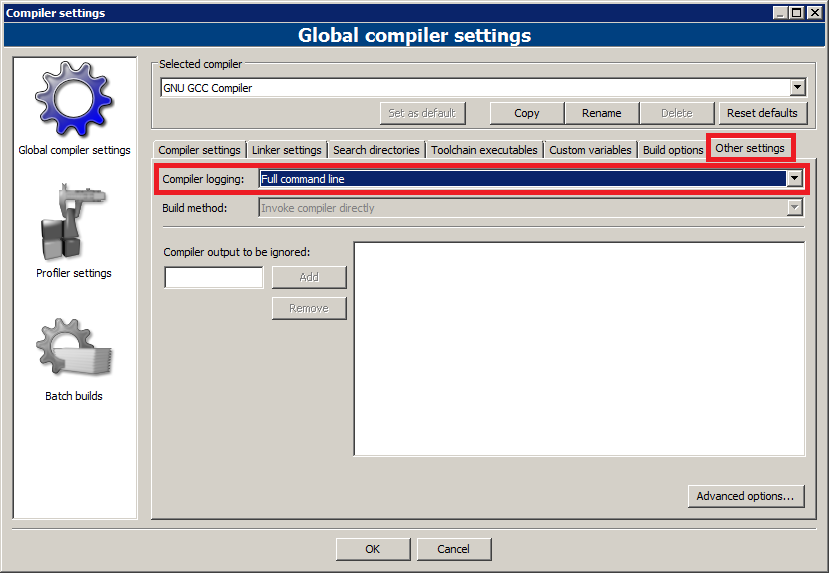
Go to the "Other settings" tab and change the "Compiler logging:" entry to "Full command line".
Try to build your project and change to the "Build log" tab when it completes.
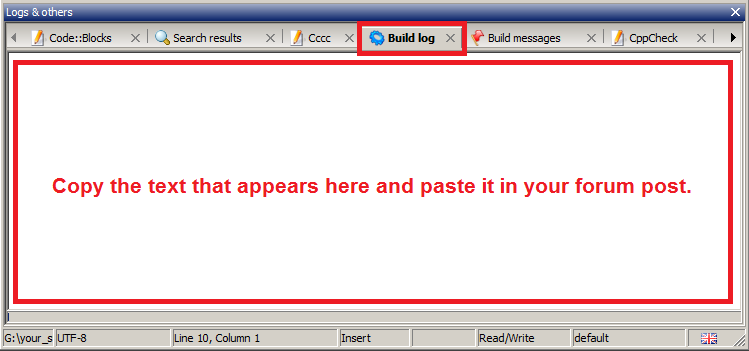
Inspect the build log and see if it helps solve your problem. If you need further help, you can ask on the forum. In that case copy the output and paste it in your post.
Microsoft Visual Studio
The screenshots are from an older Visual Studio version, but the settings are still in the same place.
First, open up your project properties window.
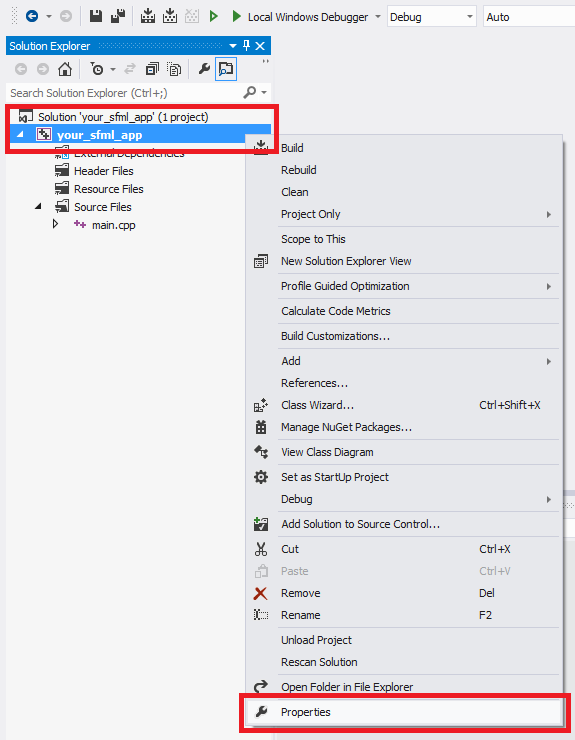
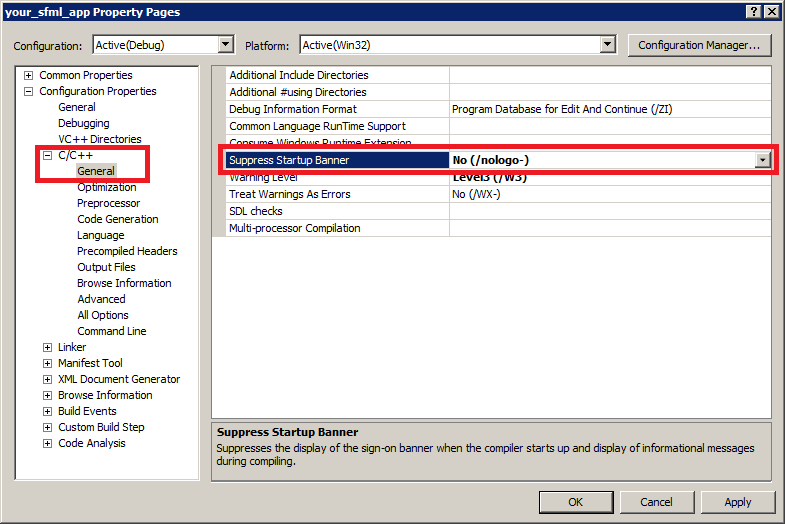
Make sure you selected the configuration you are trying to build. Open up the C/C++ -> General pane and change the "Suppress Startup Banner" entry to "No (/nologo-)".
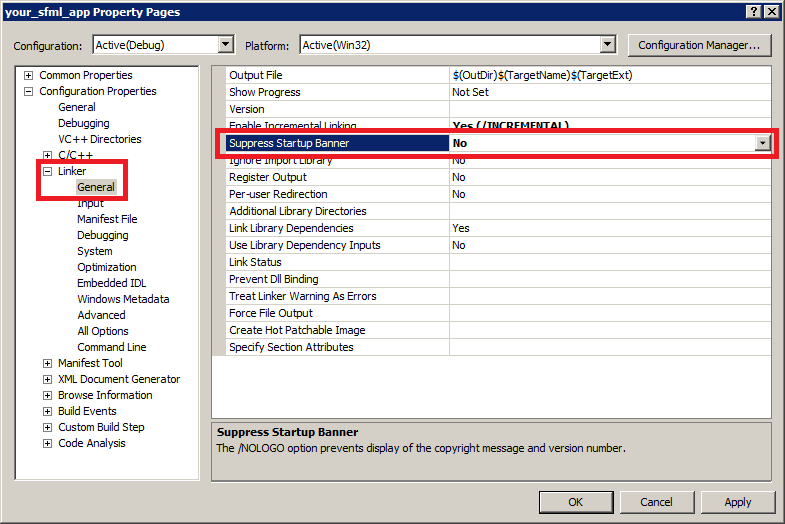
Open up the Linker -> General pane and change the "Suppress Startup Banner" entry to "No".
Try to build your project.
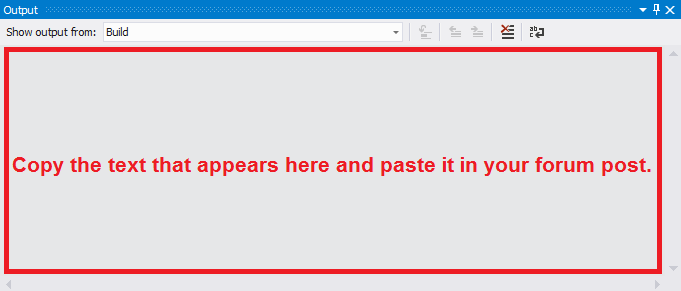
Inspect the build log and see if it helps solve your problem. If you need further help, you can ask on the forum. In that case copy the output and paste it in your post.
Reminder
When posting on the forum, it is helpful to paste your log in [code][/code] tags to enable people to handle it easier.
Not only does it avoid line-breaks, it is also displayed in a monospace font which makes it easier to read if it spans multiple lines.
Why do I get errors when mixing 32-bit and 64-bit libraries?
Every library you link has been built for a specific architecture, such as x86 (32-bit), x64 (64-bit) or ARM64, and all of them have to match the architecture your compiler is targeting. Running a 64-bit operating system doesn't mean that your compiler automatically builds 64-bit executables. For example, a 32-bit MinGW only builds 32-bit executables, and in Visual Studio the platform is selected per project configuration. SFML doesn't add the architecture to its library file names, so you have to keep track of which package you downloaded or built.
When building with Visual Studio, the linker checks the architectures of all modules that are linked together and aborts with an error if they don't match:
It is possible that X86 and x64 are exchanged.
The linkers of GCC and Clang are less helpful. They skip libraries with a mismatching architecture, which results in a large number of undefined references, and if you're lucky a "skipping incompatible" message.
To resolve this, make sure that everything matches. If you are targeting x64 with your executable, make sure you are only using x64 libraries as well, and the same applies for x86 and ARM64. Nowadays, 64-bit is the sensible default on all desktop platforms.
My project crashes randomly, but I don't get any compiler or linker errors
Make sure that you're linking against the correct version of the libraries for your project. If you're compiling in Debug mode, you must link with the Debug versions of SFML, and vice-versa for Release mode. To recall, the naming conventions for SFML are:
sfml-[module].libfor the Release DLLsfml-[module]-d.libfor the Debug DLLsfml-[module]-s.libfor the static Release librarysfml-[module]-s-d.libfor the static Debug library
If you link with the DLL versions, you must copy the required DLLs beside your executable:
sfml-[module]-3.dllfor Releasesfml-[module]-d-3.dllfor Debug
Why does a console attach itself to my project?
In Windows, if you compile your project, you will have a console that attaches itself behind your window. To avoid this, you must create the correct type of project or change its type after creation. Many IDEs have options allowing you to choose whether you want to create a console or a GUI application. It is however recommended to create an empty project and manually set its type afterwards. This ensures that nothing else is set automatically that might cause strange behavior later on.
If you have already created the console project or created an empty one:
- In Code::Blocks, open the project options (Project Menu -> Properties). In the Build targets tab, select the build target you wish to change on the left (most of the time only Debug and Release exist) and change its type option in the drop-down list on the right side from "Console application" to "GUI application".
- In Visual Studio, go to the project options (Project Menu -> Properties). In the tree on the left, expand the "Configuration properties" tree and expand the "Linker" sub-tree. Select "System" from the sub-tree, and in the SubSystem field on the right side change "Console (/SUBSYSTEM:CONSOLE)" to "Windows (/SUBSYSTEM:WINDOWS)" by clicking on the field and using the drop-down list.
- With CMake, add the WIN32 flag to your executable (
add_executable(name WIN32 ...)). This will do the same as the steps above.
To maintain a portable entry point (int main() function), you can link your program against sfml-main.lib in the case of Visual Studio or libsfml-main.a in the case of MinGW.
Using CMake, you can just make an if statement checking for WIN32 and add SFML::Main to your linked libraries.
Alternatively to hide the console, you can also define your own Windows entry point for graphical applications.
int WINAPI WinMain(HINSTANCE hThisInstance, HINSTANCE hPrevInstance, LPSTR lpszArgument, int nCmdShow)
Replace your int main() or int main(int argc, char** argv) with this function and it will be called by the operating system when your program is executed just like the classical int main() function.
SFML requires a newer CMake version than my OS provides!
SFML generally tracks the versions distributed with Debian and/or Ubuntu, as they're among the most popular distros, yet are the slowest to update.
Check the CMakeLists.txt which CMake version SFML requires. To update CMake, Kitware offers three options:
- On Ubuntu / Debian, use the provided Kitware APT Repository
- Use the provided binaries on the CMake download page
- Build CMake from source
(Debian) I can't compile the source code
Before anything else, make sure that you've followed the official tutorial and then check if the following packages have been installed:
- libx11-dev
- libxrandr-dev
- libxcursor-dev
- libxi-dev
- libudev-dev
- libgl1-mesa-dev
- libfreetype-dev
- libharfbuzz-dev
- libflac-dev
- libvorbis-dev
- libmbedtls-dev
- libssh2-1-dev
Though the library names might vary, especially regarding the version number.
Runtime Problems
My files can't be found when I run my application
Relative paths, as in sf::Texture texture("player.png"), are resolved from the working directory of your application, which isn't necessarily the directory of your executable.
IDEs often use the project or build directory as working directory, and starting the application from a shortcut or a terminal can use yet another one.
When loading fails, SFML prints the provided path as well as the absolute path it tried to load, which tells you where it looked. Either put your assets where your working directory points to, change the working directory in the debug settings of your IDE, or build your paths from a known location.
Why do I get a white/black rectangle instead of my texture?
This is due to a premature destruction of the sf::Texture.
An sf::Sprite only holds a reference to the sf::Texture bound to it.
You have to keep the sf::Texture "alive" as long as the sprite uses it.
A common mistake is to load the texture in a function and let it go out of scope at the end of the function.
The same happens when your texture is moved to another memory location, for example when it is stored in a std::vector that grows.
You then have to inform your sprite of this using its setTexture() function, or better yet, manage your textures in a way that doesn't move them, e.g. with a std::map or std::unique_ptr.
Why isn't my text showing up?
SFML doesn't come with a default font, so you have to open a sf::Font yourself, e.g. with openFromFile(), and pass it to the sf::Text.
Just like a sprite with its texture, the sf::Text only keeps a reference to the font, so the font has to stay alive as long as the text uses it, see above.
If the font is fine, check that the text is positioned inside the view, that its color differs from the background, and that the font contains glyphs for the characters you want to display.
Why can't I hear any sound?
If everything compiles and seems to work correctly, but yet no sound is coming out of your speakers you should check the obvious. Ensure your speakers are plugged in and working correctly before assuming something is wrong with SFML. You can do this by opening one of your audio assets in another audio player such as Windows Media Player or VLC. If audio fails to play correctly there, then check that your PC audio is not muted and that the volume control on your speakers is turned up. Once it plays correctly in an external player then the problem may be with SFML.
If other audio plays fine, check the lifetime of your sound objects.
An sf::Sound only keeps a reference to its sf::SoundBuffer, so the buffer has to stay alive as long as the sound uses it, just like a texture for a sprite.
The sf::Sound itself has to stay alive while it plays as well, a sound created as local variable in a function stops as soon as the function returns.
The same applies to sf::Music.
RenderTextures don't work on my computer!
First of all, as with everything else sfml-graphics related, check if you have drivers installed that expose the hardware functionality that SFML uses. If you have a system that came with pre-installed drivers, that still doesn't mean that they were bug-free or even supported everything that the hardware would be capable of. There is never an excuse not to at least check for updated drivers and try to install them. This might not always be possible, but for the majority of cases (and almost all the time for desktop computers) it is possible.
Once you are sure that your drivers are up-to-date, check if your graphics hardware supports OpenGL Framebuffer Objects (GL_EXT_framebuffer_object extension). If you are sure it does and RenderTextures still don't work, open a thread on the forum with the information you have gathered and almost all the time, you will be assisted promptly.
If your graphics hardware doesn't support OpenGL Framebuffer objects, fear not, because SFML has a fallback implementation which uses an auxiliary context's framebuffer to render to. The performance ranges from marginally slower than the native implementation to much slower e.g. in software renderers.
If the second variant doesn't work for you either, and you know that your hardware is somewhat capable, open a thread on the forum with the information you have gathered and a solution will be worked out most of the time.
My computer crashes when I run my SFML program!
SFML was designed in a way that should not cause your computer to crash/freeze/hang/BSOD in any way. If it does exhibit such behavior specifically when running your SFML program, it might be only indirectly because of SFML.
If you are using unstable drivers (still in beta or off a development branch in your package manager) chances are that they are the root cause of the problem. The reason why they cause more problems with SFML than with other programs/games is mainly because OpenGL related bugs in drivers are given low priority over DirectX related bugs simply because the latter affect more games. You'll just have to be patient and wait for the relevant bug to get fixed or revert to an older, more stable driver.
If you are not using unstable drivers, crashing might still be caused by over-clocking (either self-performed or automatic) of your hardware. Try running everything at standard performance settings and see if that fixes the problem. If your hardware comes over-clocked by default, search around the internet for other people who might be experiencing the same problems. If this is the case you should contact your retailer/card manufacturer as this is a hardware related issue and you won't be able to do much on your own.